
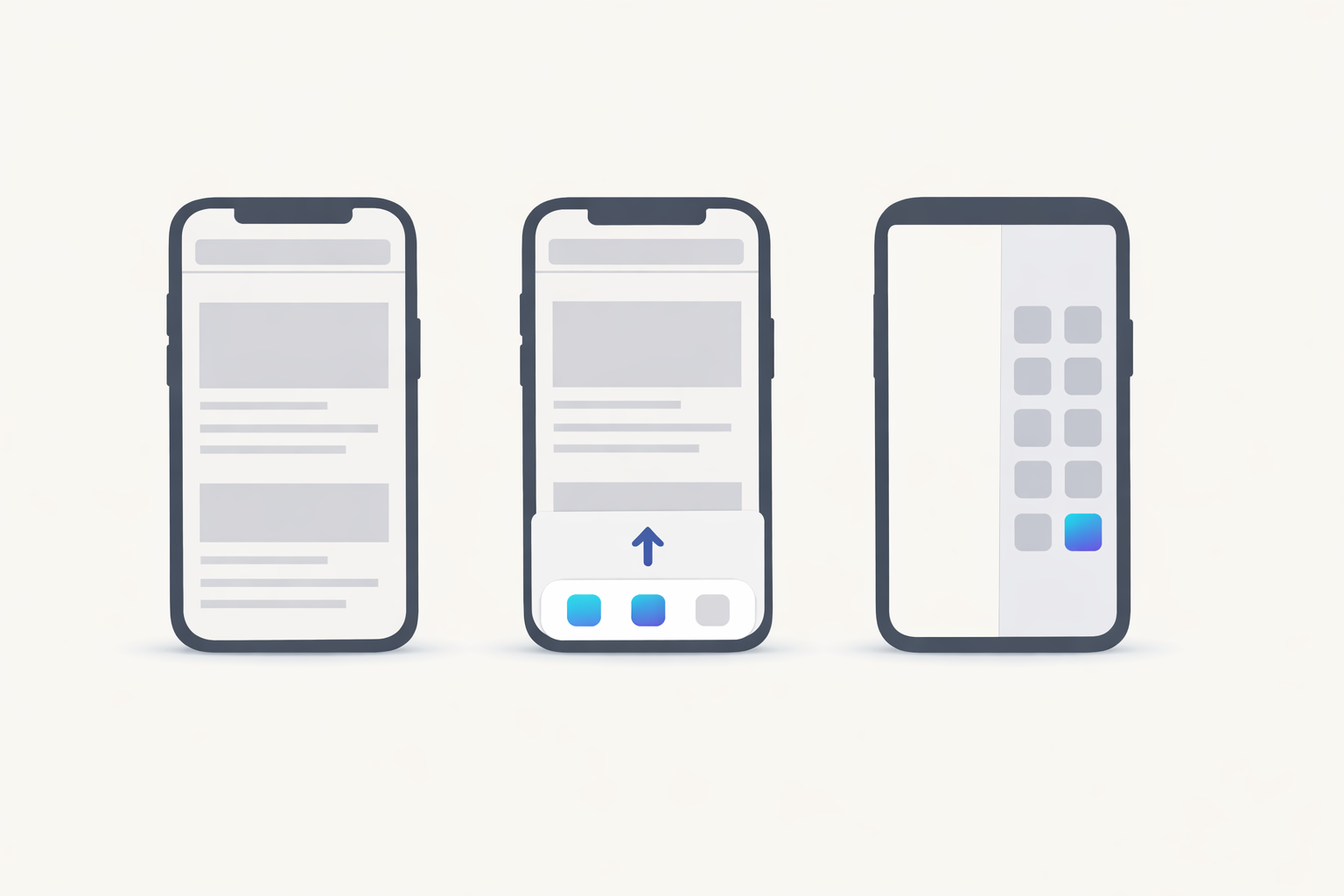
To install an English speaking app on iPhone without the App Store, you need four taps and about twenty seconds. You are probably in this exact moment: the app open in a browser tab, an App Store search that came back empty, the phone in your hand. In Safari, tap Share, scroll the list, tap Add to Home Screen, then tap Add. An icon lands on your home screen and opens in its own window. Two-Minute Speaking, the app this site publishes, installs this way and has no store listing.
Put the app on your iPhone home screen in four taps
Apple calls this turning a website into an app. Its guide gives the sequence: “Go to the Safari app on your iPhone, go to the website, and tap the share button. Scroll down the list of options, then tap Add to Home Screen” (Apple Support).
- Open the app’s address in Safari. For Two-Minute Speaking, open it in Safari rather than in a tab inside another app.
- Tap the Share button in the bottom toolbar.
- Scroll past the row of apps and tap Add to Home Screen.
- Check the name, then tap Add. At the time of writing, Apple’s guide also describes an Open as Web App switch on newer iOS versions; with it on, Apple says the site “opens just like an app, and you can receive notifications from the web app.”
Tip
Rename the icon before you tap Add. The name offered is usually the page title, which is long and unhelpful on a home screen. One short word you recognise is worth the second it costs.
Nothing is downloaded from a store during those four taps. You are saving a launcher for a page your phone already loaded, which is why there is no progress bar. The same taps work for any browser-based speaking app.
Why a speaking app might not be in the App Store at all
An app that opens in a browser is usually a progressive web app. MDN defines that as “an app that’s built using web platform technologies, but that provides a user experience like that of a platform-specific app.” That is a documented category of software, not a workaround.
For a learner it has four consequences. The same account opens on a phone, a laptop or a borrowed computer. Updates arrive when the page loads. It uses no meaningful storage. And it still works when the App Store is not a route you can use, whatever your reason.
To be direct about our own app: Two-Minute Speaking is a progressive web app today. Native iOS and Android apps are planned with no date promised, as stated on the page about how Two-Minute Speaking works. One build instead of two is why a small team starts on the web.
The flip side belongs in the same breath. No store listing means no store reviews, no family sharing and no store-level refund path. You have to judge the site itself instead of leaning on Apple’s checks.
What the home-screen version does that a browser tab does not
On iOS the home-screen step is not cosmetic. WebKit states the rule: “A web app that has been added to the Home Screen can request permission to receive push notifications as long as that request is in response to direct user interaction” (WebKit). A bookmark cannot ask you for reminder permission at all. Once granted, the same post says notifications “work exactly like notifications from other apps.”
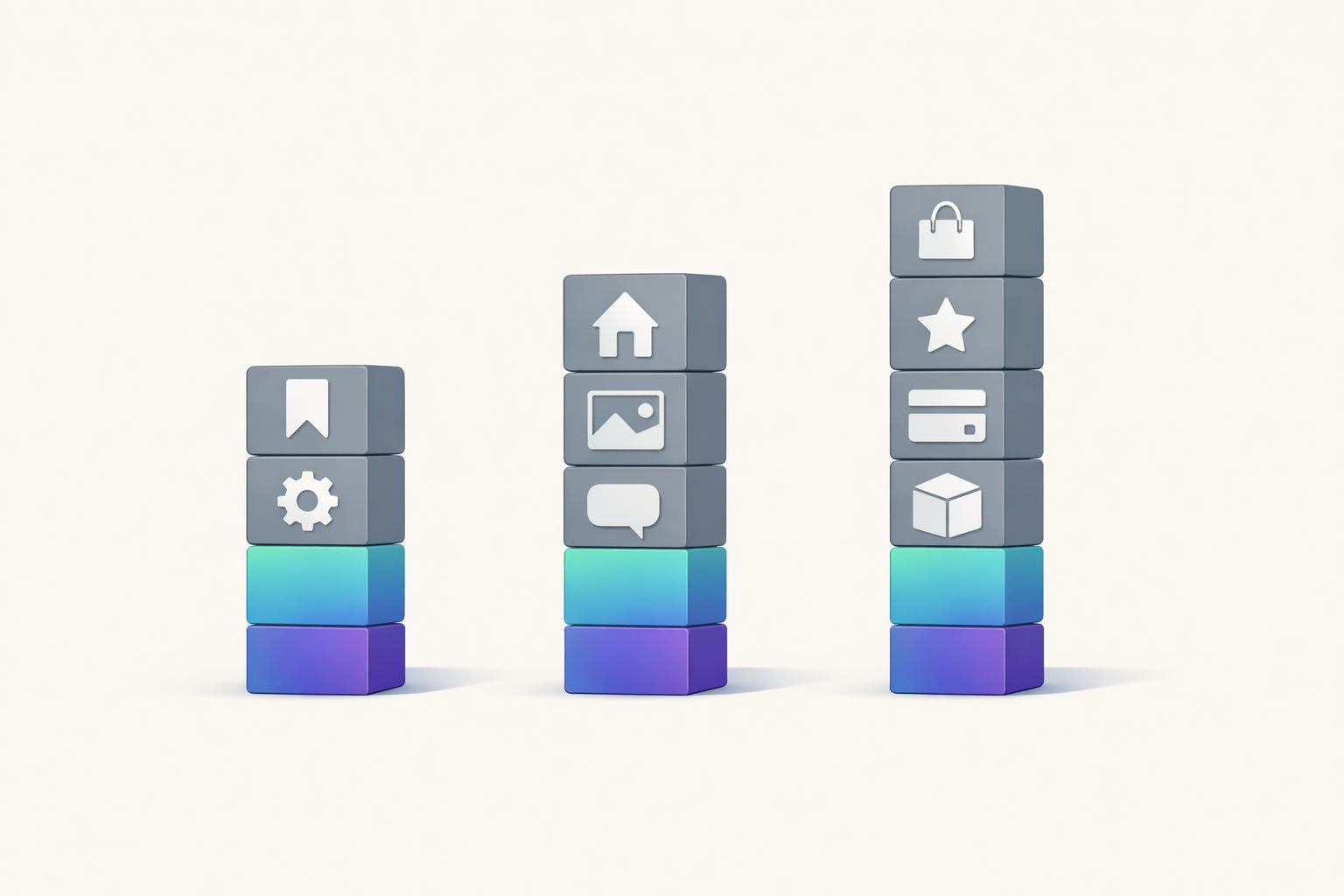
| Browser tab or bookmark | Home-screen web app | App Store app | |
|---|---|---|---|
| How you open it | Safari, then a tab | Its own icon and window | Its own icon |
| Practice reminders | Cannot request push permission on iOS | Can request it after you tap a control | Can request it after install |
| Microphone | Works in the browser | Works in standalone mode since iOS 13.4 | Works with permission |
| Storage quota | Standard browser quota | Same quota as in the browser | Stored on the device |
| Updates | On page load | On page load | Downloaded from the store |
The microphone is the make-or-break detail, so test it rather than assume it. Access inside a standalone home-screen web app was broken for a period and confirmed working again “as of iOS 13.4 beta 1” in WebKit’s bug tracker, released publicly in 2020. Whether the permission is remembered on every relaunch is not documented, so expect an occasional prompt.
Reminders only earn their permission if the app respects your schedule. In Two-Minute Speaking you choose how many sessions a day you want and at what times, and the reminders follow that.
When Add to Home Screen is missing
The most common reason has nothing to do with your phone. If you reached the app by tapping a link inside a messaging or social app, the page opened in that app’s built-in browser, which is not Safari. Add to Home Screen is a browser feature, not a system-wide share action, so the option is simply not there. Look in that window’s own menu for the item that opens the page in your browser.
Tip
The fallback that always works: type the address into Safari yourself instead of following a link from anywhere else.
If you use a browser other than Safari on iPhone, check whether it offers Add to Home Screen at all. Support varies by browser and by version, and Apple’s instructions are written for Safari.
The action can also be hidden from your share sheet. Apple’s guide documents a fix, current at the time of writing: “If you don’t see Add to Home Screen, scroll down to the bottom of the list, tap Edit Actions, then tap Add to Home Screen.”
Two quieter causes are worth a look. A phone managed by an employer, a school or Screen Time may block adding items, and only whoever manages it can tell you. In Private Browsing the icon may appear, but your sign-in is unlikely to survive.
Three checks that prove the install worked
Run this test now instead of discovering on day four that reminders never arrive. It works for any speaking app you install this way.
- The window. Open it from the icon and look at the top of the screen. No address bar means an installed app. If the browser bar is still there, you saved a bookmark, and the reminder path is closed to you.
- The voice. Start one short session and speak. The microphone prompt should appear and you should grant it. A speaking app that cannot hear you is worth nothing.
- Tomorrow. Open it again the next day from the icon and confirm you are still signed in and that the reminder you set arrived.
One rule goes with check three. If the reminder did not arrive, open the app’s own session settings before you blame the phone, because notification permission and the app’s schedule are two separate switches. Sign-in should survive: WebKit states a standalone web app “has the same origin quota and overall quota as when it is opened in a browser app” (WebKit). Then the icon can carry a two-minute daily routine.
Is it safe to add a web app to your home screen
A home-screen web app is the same web page in its own window, under the same browser rules as any site you visit. It does not gain access to your contacts, your photos or your files by sitting on the home screen.
It can ask for what any site can ask for, with a visible prompt each time: the microphone, and notifications once it is on the home screen. Both are grants you make, and both can be revoked later in your phone’s Settings app.
Removing it is the same gesture as removing anything else. Apple’s guide, current at the time of writing, separates two actions: “To remove an app from your Home Screen, touch and hold an app, tap Remove App, then tap Remove from Home Screen. Deleting an app removes it and its data from your iPhone” (Apple Support).
For a speaking app the bigger question is what happens to your voice. Our position is published: speech is transcribed to produce the correction, is not shared with other learners, is not used for advertising, and data is deleted on request by email from your account address. Read what happens to your recordings before you speak into anything, ours included.
Warning
Adding a site to your home screen does not make it trustworthy. Decide about the site first, then install. A speaking app that will not tell you what happens to your voice is one you should not speak into, whether it came from a store or from a browser.
The same thing on an Android phone
Chrome for Android puts this in the browser menu rather than a share sheet. Google’s help page, current at the time of writing, describes it as: tap More, the three dots beside the address bar, select Install and create shortcut, tap Install, then follow the on-screen instructions. Some sites show an install prompt on the page instead.
Run the same three checks afterwards. We found no documented difference in microphone or notification behaviour on Android that a learner would notice, so do not assume one either way.
When waiting for the App Store version makes more sense
Some readers should not install the web version, and this page would rather say so. If you want to pay through the App Store, use family sharing or have a store-level refund path, the web route gives you none of them. For cost, what free actually gets you is the page that answers it.
If your phone runs an older iOS than the behaviour above needs, the reminder path in particular may be closed to you. If the phone is managed by an employer, installing anything, in any form, is somebody else’s decision.
And if you simply do not trust a web install, that is a reasonable position rather than a mistake. Use the app in a browser tab and accept that reminders will not follow you. Native apps are planned here with no date published, so waiting is open-ended rather than scheduled.
Questions people ask about installing a speaking app
Do I need the App Store to use an English speaking app on my iPhone? No, if the app is a progressive web app. You open its address in Safari and use it there, or add it to your home screen for an icon and its own window. If you are still choosing between tools, start with how AI English speaking practice works.
Why is Add to Home Screen missing when I tap Share? Most often because the page opened inside another app’s built-in browser instead of Safari. Open it in Safari and the option returns. If it is missing in Safari itself, Apple’s fix is to scroll to the bottom of the share list, tap Edit Actions, then tap Add to Home Screen.
Will a home-screen web app send me practice reminders? Yes, but only after two things happen. WebKit states that a web app can request notification permission once it has been added to the Home Screen, and the request must follow a direct tap from you. After that, the notifications behave like any other app’s.
Does a web app on my home screen use my microphone properly? Yes. Microphone access in a standalone home-screen web app was confirmed working again from iOS 13.4 beta 1 in WebKit’s bug tracker. Whether the grant is remembered on every relaunch is not documented, so a repeat prompt is not a sign of a broken install.
How do I remove it, and what happens to my account and my mistakes? Touch and hold the icon and remove or delete it, as you would any app. Your account and your saved mistakes live on the server, not on the icon, so signing in again from any browser brings them back. For the short answers on levels and coaching language, see the questions about getting started.
If you want to try the four taps on something real, Two-Minute Speaking is a web app: open app.aienglishspeaking.app in Safari, add it to your home screen, and run one placement session from the icon. If the three checks above pass, you have a two-minute habit that starts with a tap instead of a search.
Leave a Reply